
Swofty UI
Swofty UI is a viewer and editor for F1 25's menu scenes. It runs on your computer and opens in your browser. It reads the game's UI archives without changing them, draws each scene with the game's own textures and colours, and exports edited scenes ready to ship in an addon.
Get it
From a release
Launcher releases after 1.0.6 include Swofty UI. Install the launcher as in Installation, then:
| System | Start Swofty UI |
|---|---|
| Windows | Double-click bin\swofty-ui. in the install folder |
| Linux and Steam Deck | Run bin/swofty-ui from a terminal. The install folder also has a desktop entry and icons under share/ |
It needs no Python.
From source
Swofty UI is in the launcher's repository, in tools/swofty-ui. It needs Python 3.14 or newer. Python 3.10 to 3.13 also work with the zstandard module (pip install zstandard) or the zstd command installed.
git clone https://github.com/Swofty-Developments/SwoftyLauncher
cd SwoftyLauncher
python3 tools/swofty-ui/serve.pyStart it
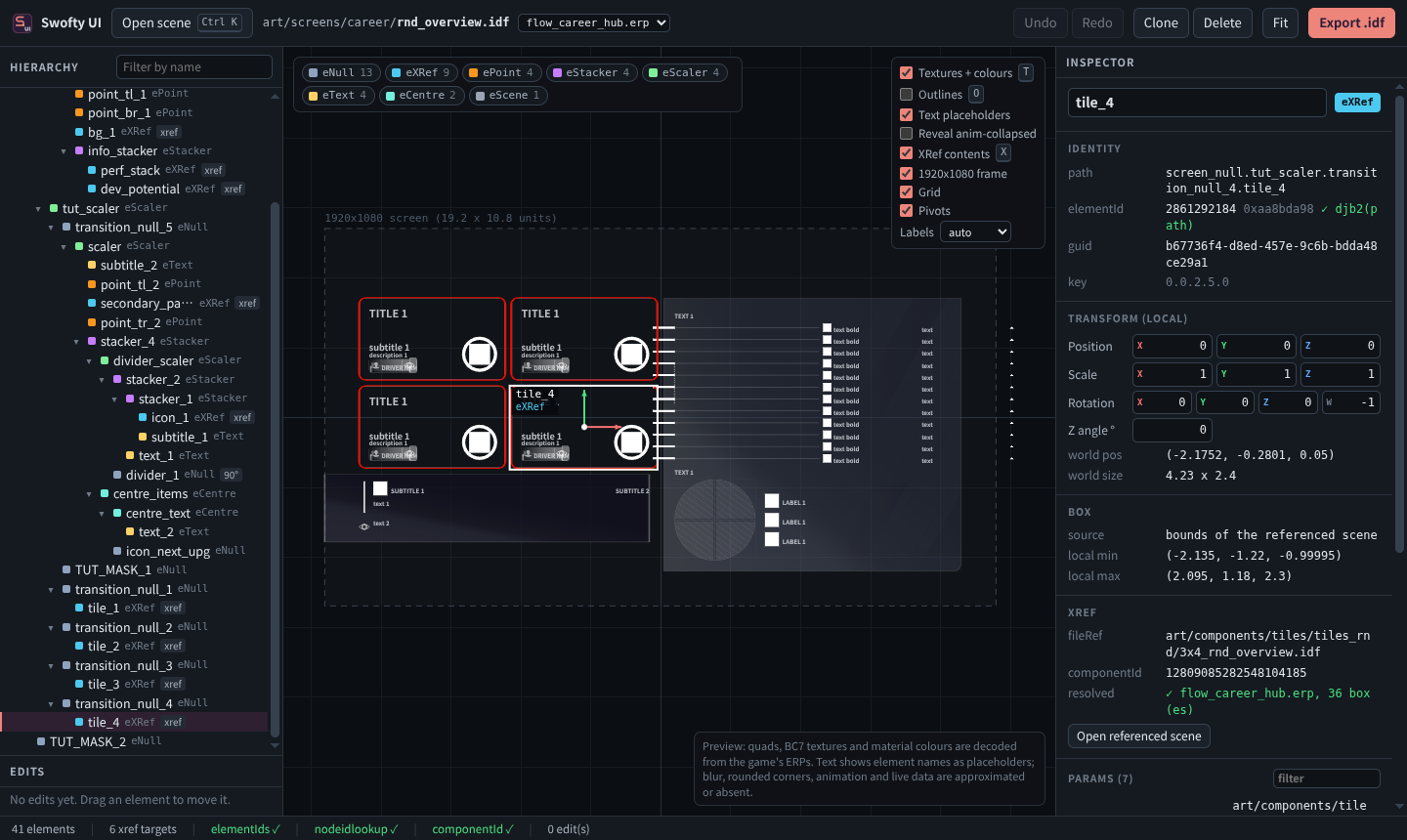
Swofty UI finds the game, reads the list of scenes, and opens the editor in your default browser. Its window shows where everything is:
Swofty UI
Reading the UI archives in C:\Program Files (x86)\Steam\steamapps\common\F1 25\2025_asset_groups\ui_package (found via Steam)
Indexed 5208 scenes in 435 archives (0.8s)
Exports go to C:\Users\you\AppData\Local\Swofty\swofty-ui\exports

Swofty UI is running at http://127.0.0.1:7341/ — close this window or press Ctrl+C to stop- It listens on port 7341. When another program uses that port, it takes the next free one and opens that address instead.
- Close the window, or press Ctrl+C, to stop it.
- If the browser doesn't open, open the address it printed.
The game folder
Swofty UI looks for F1 25 in this order:
- The folder given with
--game. - The
F1_25_DIRenvironment variable. - The folder you picked with Locate game in the launcher.
- Your Steam libraries, including extra library folders and Flatpak Steam.
--game takes the F1 25 folder, a copy of it, or its 2025_asset_groups/ui_package folder. If Swofty UI can't find the game, it says where it looked and how to pass the folder, and waits for Enter before closing. Run it from a terminal in the extracted launcher folder:
bin\swofty-ui.exe --game "D:\SteamLibrary\steamapps\common\F1 25"bin/swofty-ui --game "$HOME/.local/share/Steam/steamapps/common/F1 25"Swofty UI never writes to the game folder. It only reads the archives, writes exports to its export folder, and refuses an export folder inside the game folder.
Options
| Option | Effect |
|---|---|
--game <folder> | The game folder to read |
--no-game | Start without the game, to open . files from disk |
--open <scene> | Open a scene first: a path such as art/screens/career/rnd_overview., or an . file |
--export-dir <folder> | Where exports go. The default is swofty-ui/exports in the launcher's data folder: %LOCALAPPDATA%\Swofty on Windows, ~/. on Linux |
--port <n> | The first port to try, 7341 by default |
--host <address> | The address to listen on, 127.0.0.1 by default |
--no-browser | Don't open the browser |
--check-refs | Check every scene reference in the game's UI archives, print the result and exit. See Check every reference |
Open a scene
Press Ctrl+K or Open scene and type part of a scene's path. Words match anywhere in it, so career rnd finds art/screens/career/rnd_overview.idf. Each result shows how many archives hold the scene. To open a file instead, paste its path, or choose Open .idf from disk.
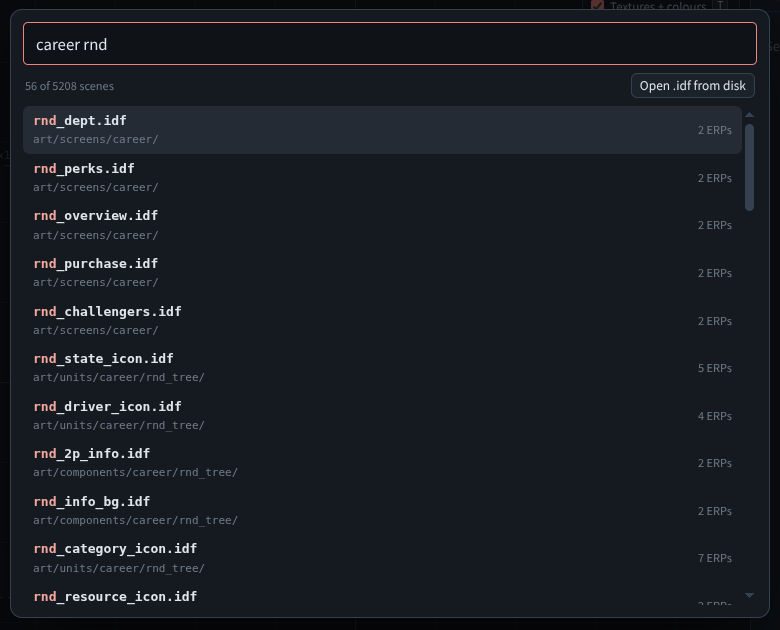
When several archives hold the scene, the picker next to its path in the title bar switches between their copies.
The window
- Hierarchy, on the left, is the element tree. Each row shows the element's class,
xrefmarks a reference to another scene, andid≠pathmarks a reference whosexrefid andfileRefname different scenes. Filter it by name, click a row to select it, and double-click a row to zoom to it. Under it, Edits lists every edit in order. - The canvas, in the middle, draws the scene. Click an element to select it. The chips at the top left count the elements of each class; click one to hide that class.
- Inspector, on the right, shows the selected element: its path and
elementIdwith a check against its path, its local transform with its world position and size, its box, the scene it references, its params and animations. With nothing selected, it shows the scene'scomponentId,nodeidlookupand reference checks. - The status bar shows the element count, the id checks, the number of edits and the last export.
Display
| Option | Key | Effect |
|---|---|---|
| Textures + colours | T | Draws each element's mesh with its BC7 texture and material colour, decoded from the archives |
| Outlines | O | Draws each element's box, coloured by class |
| Text placeholders | Writes each text element's name in its box | |
| Reveal anim-collapsed | Shows elements the game keeps at a scale near 0 until an animation or live data grows them | |
| XRef contents | X | Draws the scene each eXRef loads in game inside it, clipped by eWindow elements |
| 1920x1080 frame | Draws the screen as 19.2 × 10.8 units, centred on the origin | |
| Grid, Pivots, Labels | Draw the grid, each element's origin and element names |
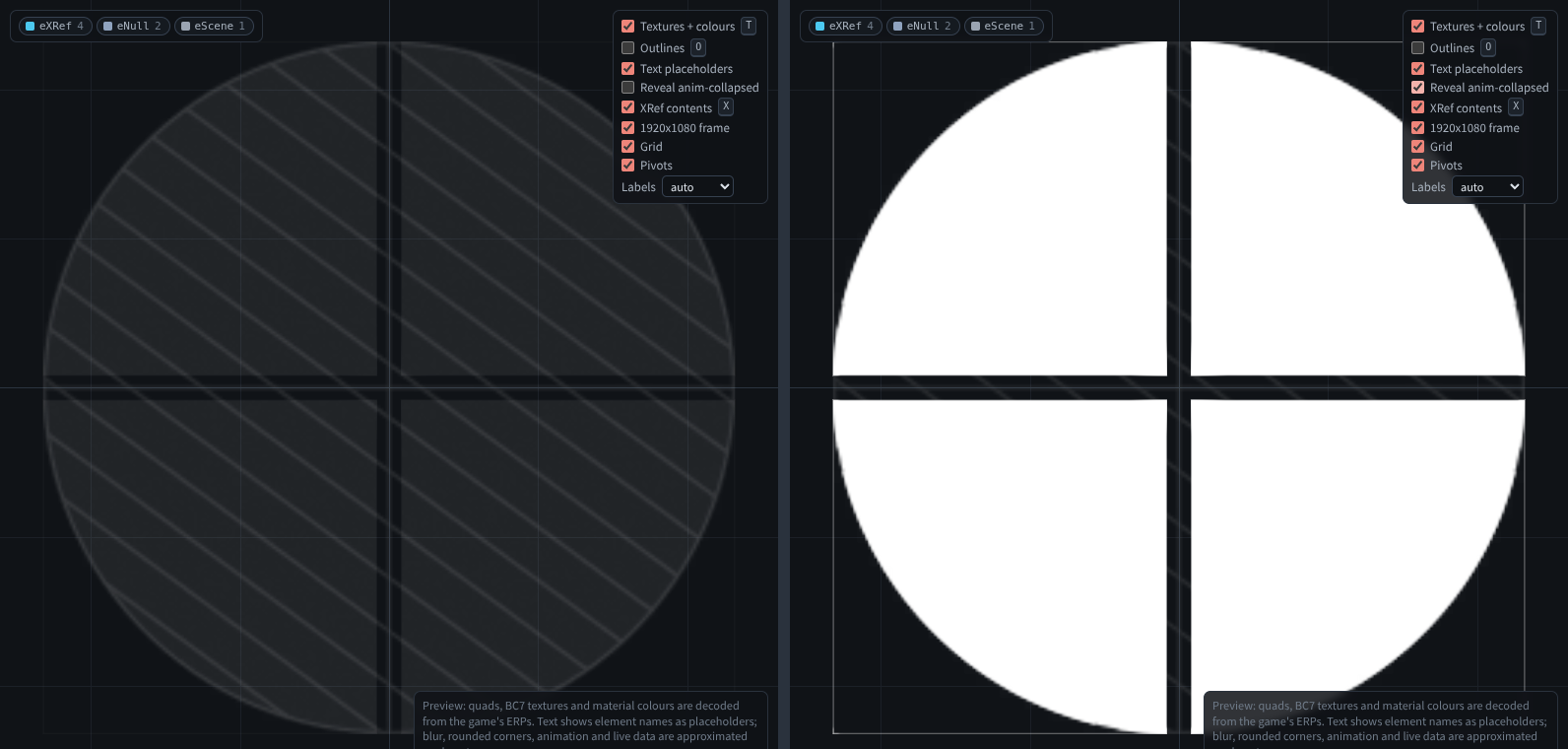
The canvas is a preview. Gradients, rounded corners and circular fills are approximated, glass blur is a dark panel, and text shows element names instead of the game's strings. Animations and live data are not drawn.
References
An eXRef stores the scene it references twice: its fileRef param holds the scene's path, and its xref holds the scene's componentId. The game loads the scene whose componentId is xref and ignores fileRef when it looks the scene up. Swofty UI does the same: it draws, outlines and opens the scene the xref id names. See References.
The inspector's XRef section shows fileRef, the xref id with a check against md5-64 of fileRef, and the scene the game loads. When the id and the path name different scenes:
- the hierarchy row shows
id≠path, and the canvas outlines the element in red with anxref id ≠ fileReftag; - the inspector says which scene the game loads, and offers Load
<fileRef scene>(set the id) and Keep<id scene>(set fileRef), which retarget the reference to one of the two; - the status bar counts the mismatched references;
- export is refused until every reference agrees.
A referenced scene that itself holds such a reference gets a yellow note in the inspector, listing the references inside it and the scenes they load.
Edit
| Edit | How |
|---|---|
| Move | Drag the element, or press the arrow keys: 0.01 units a press, 0.1 with Shift. Hold Shift while dragging to keep to one axis. A move changes the element's local position. |
| Transform | Type a position, scale or rotation in the inspector. Z angle rotates the element in the screen plane. |
| Params | Edit numbers, vectors and toggles in the inspector's params. Text params are read-only. |
| Clone | Ctrl+D or Clone. The copy is a new sibling with the next free name, such as tile_5 for tile_4. When the element has a numbered sibling before it, the copy continues the spacing between them. |
| Rename | Type a new name in the inspector. Names must be unique in the scene and can't contain .. |
| Retarget | Type a scene path in the inspector's XRef section and press Retarget. It sets fileRef, the xref id the game loads by, and XrefMaterialBinding together. Editing fileRef alone isn't possible. |
| Delete | Del or Delete |
| Undo, redo | Ctrl+Z, Ctrl+Shift+Z |
Clone, rename and delete keep the scene's ids valid: they set each changed element's elementId to the djb2 of its new path, give clones new guids, and rebuild nodeidlookup. See Identity.
Your browser keeps unsaved edits for each scene. When you open a scene you edited before, Swofty UI offers to restore them.
Export
Press Ctrl+S or Export .idf. Swofty UI replays your edits on the original bytes, checks the result, and writes three files to its export folder:
| File | Contents |
|---|---|
<scene>. | The edited scene |
<scene>. | The ERP operations that ship it: one replace-resource per archive that holds the scene, with source set to ui/<scene>. |
<scene>. | The source scene and archive, the SHA-1 of the source and the export, and the edit list |
An export replaces an earlier export of the same scene. The dialog also has Download .idf and Open export folder.
Export checks
| Check | Passes when |
|---|---|
| Re-parses | The file reads back as a scene |
| Round-trips | Reading and writing it again gives the same bytes |
| elementIds | Every elementId is the djb2 of its element's dotted path |
| nodeidlookup | nodeidlookup is the sorted, de-duplicated djb2 of every element name |
| componentId | The scene's componentId is unchanged, so the build accepts it for the same . |
| References | Every eXRef's xref id is md5-64 of its fileRef: the game loads the scene fileRef names |
When the References check fails, Swofty UI writes nothing. The dialog lists each reference, its fileRef and the scene the game loads instead. Retarget each one, then export again. Swofty UI's own edits keep references consistent; a mismatch comes from a scene another tool wrote.
The dialog also says whether the file differs from the source. An export with no edits is identical to the source, and the same edits always give the same bytes.
Check every reference
--check-refs reads every scene in the game's UI archives, checks each reference, and exits with status 1 if any xref id and fileRef disagree. Run it on a built game to check the scenes your addons ship:
bin/swofty-ui --check-refs --game "$HOME/.local/share/Steam/steamapps/common/F1 25"Checked 58925 references in 26913 scene copies (5208 distinct, 5208 scenes) in 5.5s
33 consistent references name a scene no UI archive holds
0 reference(s) whose xref id is not md5-64 of fileRefOn stock archives it finds no mismatch. Each mismatch prints its scene, element, archives and the scene the game loads.
Keyboard and mouse
| Key | Action |
|---|---|
| Ctrl+K, / | Open a scene |
| Ctrl+S | Export |
| Ctrl+Z | Undo |
| Ctrl+Shift+Z, Ctrl+Y | Redo |
| Ctrl+D | Clone the selected element |
| Del, Backspace | Delete the selected element |
| Arrow keys | Move the selected element by 0.01 units; with Shift, by 0.1 |
| P | Select the parent |
| F, Shift+F | Fit the scene, fit the selection |
| T, O, X | Textures, outlines, referenced scenes |
| Esc | Close a dialog, or clear the selection |
| Wheel | Zoom |
| Middle or right drag, Space+drag | Pan |
| Alt+click | Select the next of several overlapping elements |
In an inspector field, Enter applies the value, Esc reverts it, and ↑/↓ step it by 0.01, or 0.1 with Shift. Z angle steps by 1°, or 10° with Shift.
Example: a fifth R&D tile
The R&D overview screen lays out four department tiles in a fixed 2 × 2 grid. Each tile is an eXRef, tile_1 to tile_4, under an animated parent, transition_null_1 to transition_null_4. This adds tile_5 one row below tile_4.
Press Ctrl+K, type
rnd_overview, and openart/screens/career/rnd_overview.idf.In the hierarchy, select
tile_4, undertransition_null_4. Leavetransition_null_4where it is: its animation sets its position.Press Ctrl+D. Swofty UI adds
tile_5next totile_4, withelementIddjb2("screen_null.tut_scaler.transition_null_4.tile_5")anddjb2("tile_5")added tonodeidlookup.In the inspector, set Position to X
0, Y-2.52. The grid's rows are 2.52 units apart, sotile_5now sits one row belowtile_4, over the lower info panel. A finished layout moves the elements around it too.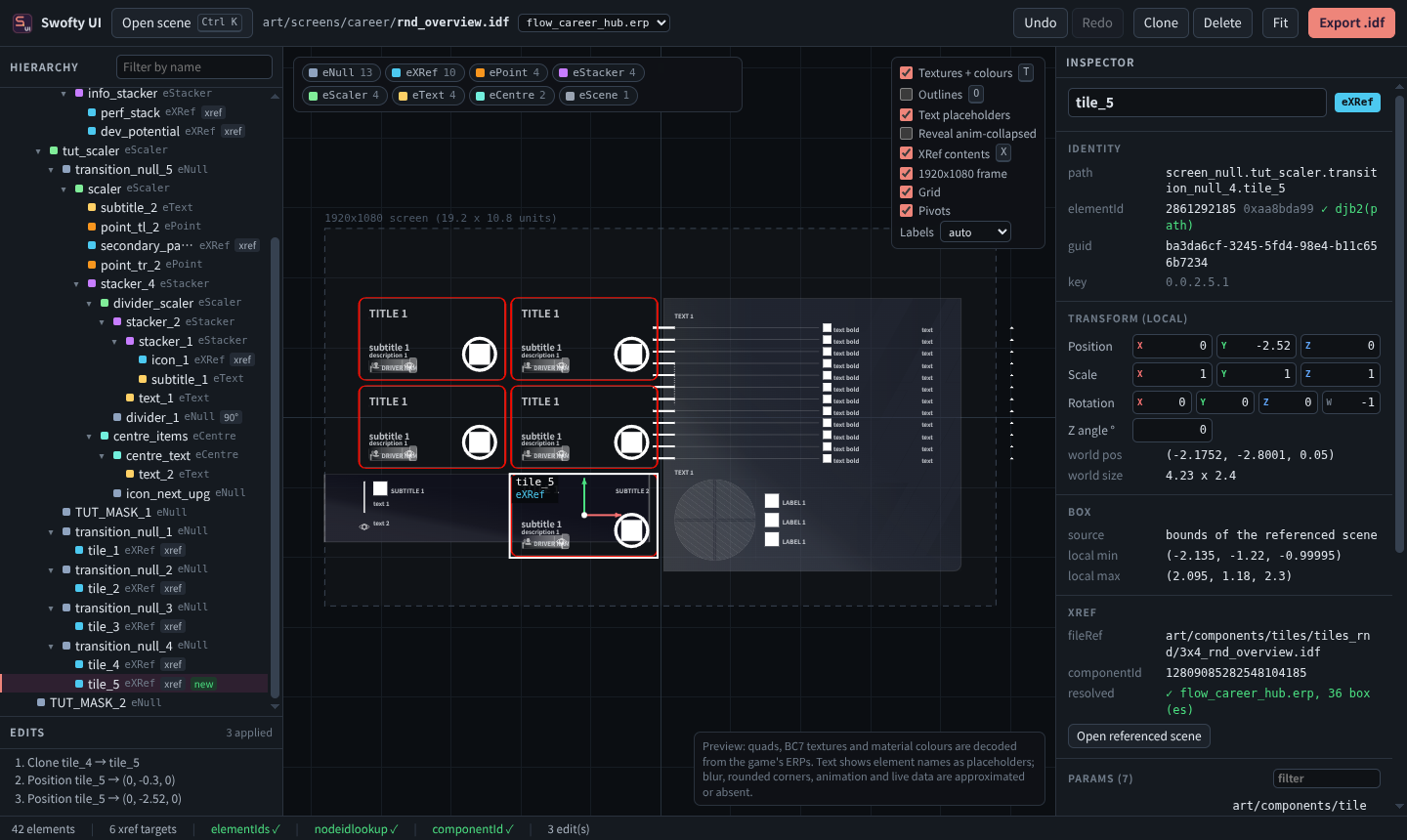
Press Ctrl+S. All checks pass, and the export folder gets
rnd_overview.idf,rnd_overview.edits.jsonandrnd_overview.erp.json, with stanzas forflow_career_hub.erpandflow_team_hq.erp.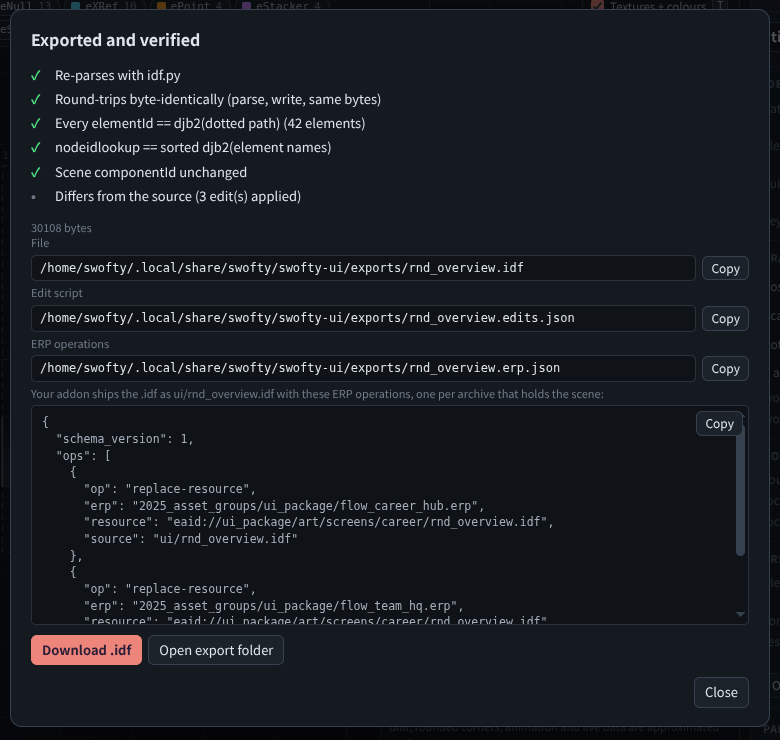
Ship it as in Editing menus with an addon.
tile_5 draws the referenced tile's art in Swofty UI. In game, a tile's title and values come from the .ui node attached to it, so tile_5 stays empty until a node attaches to its name. See Limits.
HTTP API
Swofty UI's editor talks to its server over HTTP on the same address, and scripts can too. Open a scene to get a doc id, then send edits to it:
base=http://127.0.0.1:7341
doc=$(curl -s "$base/api/open?eaid=art/screens/career/rnd_overview.idf" | jq -r .doc)
curl -s "$base/api/export" -H 'Content-Type: application/json' -d '{
  "doc": "'"$doc"'",
  "ops": [
    { "op": "clone", "key": "0.0.2.5.0", "name": "tile_5", "position": [0, -2.52, 0] }
  ]
}' | jq .checksTo replay an export's edits on a fresh copy of the scene, send its ops:
curl -s "$base/api/export" -H 'Content-Type: application/json' \
-d "$(jq -c --arg doc "$doc" '{doc: $doc, ops: .ops}' rnd_overview.edits.json)" | jq .checks.ok| Endpoint | Purpose |
|---|---|
GET /api/catalog | Every scene with the indexes of the archives that hold it, and the export folder |
GET /api/open?eaid=<path>[&erp=<archive>] | Open a scene from the archives. Returns doc and the scene model |
GET /api/open-file?path=<file> | Open an . file |
POST /api/upload?name=<name> | Open the . in the request body |
POST /api/apply | { doc, ops }: replay the edits and return the model, with each edit's result |
POST /api/export | { doc, ops, name? }: write and check an export. Returns the file paths, operations, size and checks |
POST /api/reveal | Open the export folder in the file manager |
GET /api/xref?eaid=<path>[&reveal=1] | The flattened boxes and geoms of a referenced scene, with nested references resolved by xref id, and mismatches for references inside it whose xref and fileRef disagree |
POST /api/visuals | { items: [{ res, mat, erp }] }: the mesh, material params and texture names of each geom |
GET /api/texture?name=<. | The top mip's BC7 bytes, with its size in X-Tex-Width and X-Tex-Height |
GET /api/resources?erp=&prefix=, GET /api/resource?erp=&name=&frag= | List an archive's resources, read one fragment |
Edits
ops is a list of edits, applied in order. key addresses an element by child indexes: 0 is the root of the first scene, 0.0 its first child, and 0.0.2.5.0 is tile_4 in rnd_overview.idf. Keys refer to the tree as it is when that edit runs, so an edit after a clone or delete can address the new tree. The inspector shows each element's key.
op | Fields | Edit |
|---|---|---|
set | key, field, value | Set position or scale ([x, y, z]) or rotation ([x, y, z, w]) |
param | key, name, value | Set a number, vector or toggle param |
clone | key, name, optional position | Copy the element as a new sibling named name |
rename | key, name | Rename the element |
delete | key | Delete the element and its children |
retarget | key, fileRef | Point an eXRef at the scene fileRef (a path such as art/components/career/rnd_tree/rnd_dev_potential.): sets fileRef, xref and XrefMaterialBinding |
Each element in the model has fileRef, xref and, for an eXRef, ref: { path, id, pathId, ok, scene }, where scene is the scene the game loads by id and ok is id == pathId. A param edit can't change fileRef; use retarget.
/api/export answers HTTP 422 with error, checks and exported: false when a reference's xref and fileRef disagree, and writes nothing.
An edit that fails returns HTTP 400 with error and the failing edit's opIndex.
On its default address, the server only answers requests addressed to 127.0.0.1 or localhost on its port, and refuses requests that other sites' pages send.